
Stream Studio · free for StarCraft II streamersStarCraft II overlays for OBS
Add one Browser Source and your stream shows who you're facing before the game loads, your record against them, and how the match went, all read automatically from your games. 30 copy-and-paste widgets, merged chat and full-screen scenes.
Free forever · OBS Studio and Streamlabs · The agent runs on Windows
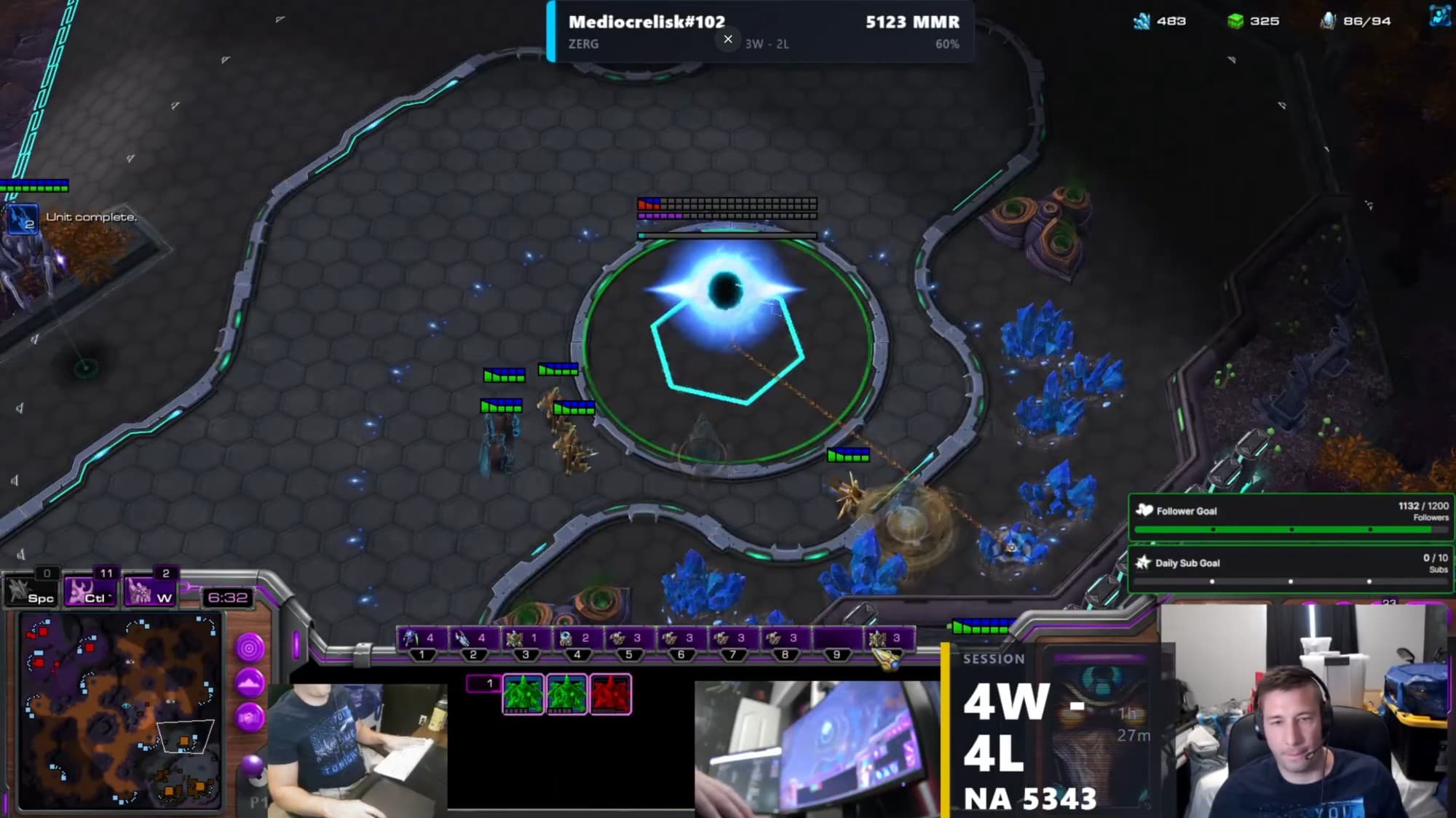
On your stream
What your viewers see
Before and during the game
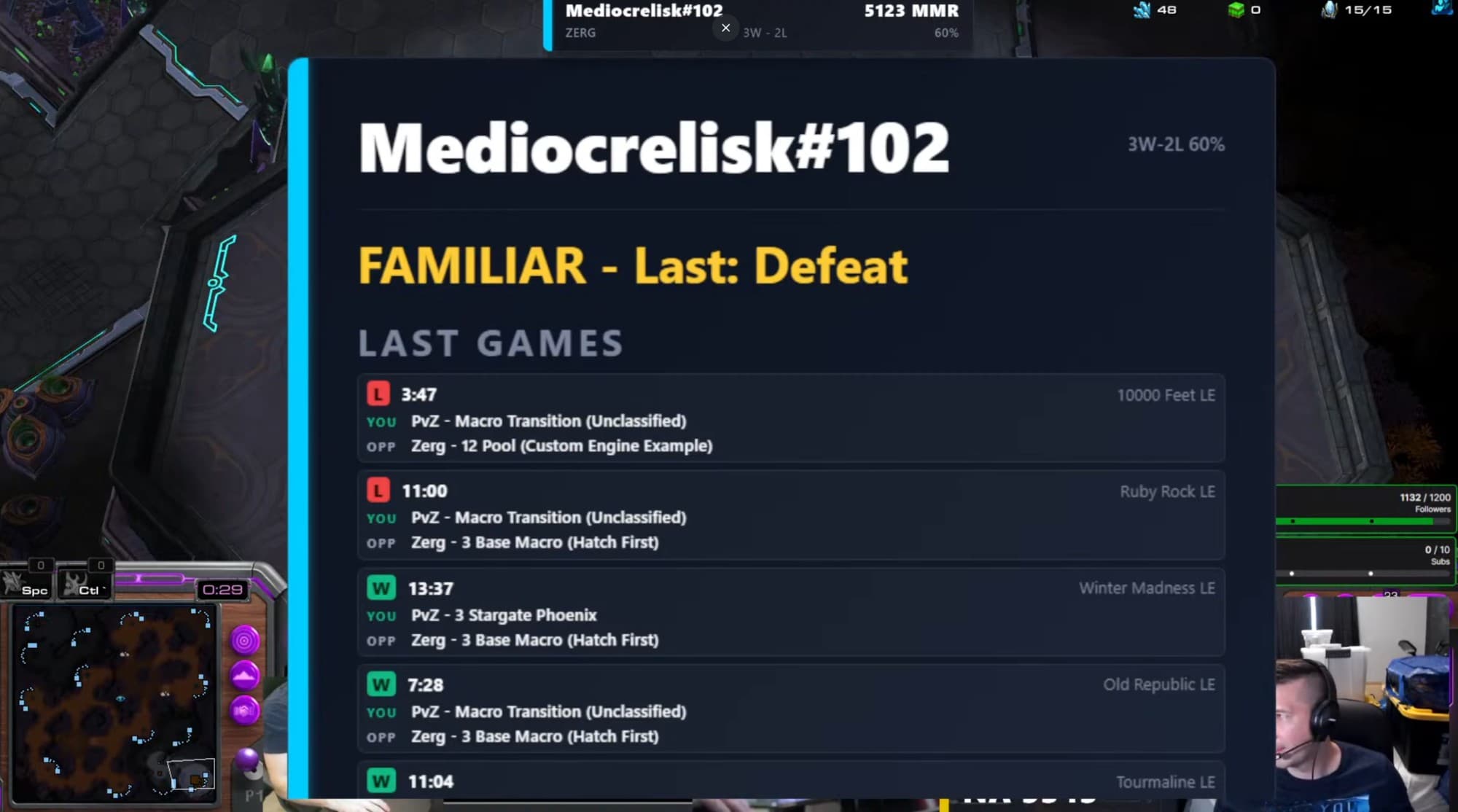
- Opponent identity. Race, MMR and your head-to-head record, on screen while the game loads.
- Scouting tells. The strategies this opponent is likely to open with, and when to look for them.
- Favourite opening and best answer. Their most-shown opening and your best counter to it.
- Cheese alert. A warning when the opponent's history points to an early all-in.
- Rematch and rival. Flags opponents you've played recently or keep meeting.
- Rank, meta snapshot and top builds. League, tier and MMR, the openings this matchup sees most, and your best builds in it.
After the game
- Match result, MMR change and streak. Victory or defeat, the points it cost or earned, and any run of three or more.
- Post-game build. A build summary for the game just played.
- Broadcast lower third. An esports-style bar with the result, MMR change, head-to-head and session record.
- Session record. Today's wins, losses and MMR, always on screen.
- Session recap. A win-loss and net-MMR card you fire on demand from the Stream Dock.
Chat and community
- Multi-platform chat. Twitch, Kick, YouTube and TikTok chat merged into one feed (4 platforms).
- Event alerts. Subs, raids, gifts and superchats as an alert toaster.
- Polls and highlights. Viewer polls with !1 / !2 voting, and pinned chat messages.
- Crystal Ball predictions. Chat calls !win or !loss before each game and climbs a leaderboard.
- Supporter wall. Cross-platform loyalty ranks, from Probe to Mothership.
- Goals, ticker, timer and clip flags. Goal bars, a scrolling stats line, a countdown, and a CLIP THAT! pulse when chat spikes.
Scenes and practice
- Starting Soon, BRB and Intermission. Full-screen scenes with a countdown, switched from the Stream Dock.
- Between Games scene. The desktop agent can build it and switch to it automatically when a game ends.
- Virtual sets. 7 broadcast backdrops, ready at 1080p and 4K.
- Ghost Build coach. Your chosen build's next steps, synced to the live game.
- Build randomizer. Spins a weighted random build for each new matchup.
- Voice readout. The scouting report read aloud as the game loads.
Setup
On your stream in a few minutes
Create a free account and install the agent
The desktop agent runs on the Windows PC you play on. It reads StarCraft II's live game data and each replay as you finish it.
Copy your overlay URL
In Settings → Overlay, copy the All-in-one URL, or one URL per widget if you'd rather place each one yourself.
Add it to OBS
In OBS Studio or Streamlabs, add a Browser Source, paste the URL and size it to your canvas.
Test, then queue up
Click Test all to preview every widget on your scene. From then on the overlay updates by itself.
Questions
Stream Studio FAQ
Is it free?
Yes. Stream Studio, the overlays and the desktop agent are free, with no card required.
Does it work with Streamlabs?
Yes. Every overlay is a web page you add as a Browser Source, which works the same in OBS Studio and Streamlabs Desktop.
Do I need the desktop agent?
For the live overlays, yes: a web page can't read StarCraft II's game data on your PC, so the agent sends it. Without the agent you can still analyze replays in your browser.
Can I change how it looks?
Yes. Settings → Overlay lets you pick the accent colour, size, opacity, corners, font and frame style, and toggle each widget on or off.
Can I hide the “Overlay by sc2tools.com” credit?
Yes. Switch it off in Settings → Overlay, then copy your URLs into OBS again.