
Desktop Companion: scouting, build choices and practice
Browse replay builds, use Hybrid scouting, and pin a Session record. Randomize from check-in even without an open widget; keep its animation and audio in the widget.
Updated For players
Agent 0.24.2 and later
Update through Agent → Check for updates or the Windows download for these controls. Screenshots use sample data. Session requires a paired agent and an available SC2 Tools connection. Team scouting also needs fresh live SC2 telemetry. Unknown history and MMR remain unavailable.
Open Companion in the Windows desktop app. Scouting, build selectors, Session and Build Order Ghost are native and need no OBS Browser Source. The Randomizer settings page silently configures its shared pool and displays the saved result. Check-in's Randomize selects and saves one build even without an open widget; its animation, sounds and spoken results are widget-only.
Connect your account
- Use Agent 0.24.2 or later for the features in this article. Link your installed app to your SC2 Tools account; see Install and pair if this is your first setup.
- Leave the agent running so new replays sync and the app receives the current game clock and matchup.
- Open Companion from the agent's navigation rail or Agent menu. Your opponent library comes from your account's imported games.
Find your way around the console
- Use Home to open the opponent library or a practice tool. Choose an opponent, then open Previous encounters and choose the replay you want to inspect.
- The arrows below the portrait move between opponents. The separate arrows above the dossier move between that opponent's games. Back returns to your previous page and selection.
- Use the left-side Scouting, Build selectors, Randomizer and Build Order Ghost buttons to change pages. Switching pages or information layouts keeps your selected replay, unsaved notes and saved feature choices.
- Open Assistance for in-game assistance, always-on-top panels, voice and saved modes. The Agent menu opens Dashboard, Recent games, Settings, Streams and Logs in the same purple console shell.
The regular agent pages keep a ‹ Companion button above the page; narrow windows put the navigation rail's pages, help and updates in the Agent menu. Return without losing your selected replay, information layout or unsaved Settings draft; changing pages does not save settings automatically. Home on an agent page opens Dashboard, while Home inside Companion opens the scouting desk. The page breadcrumb shows which area you are browsing. The themed window buttons minimize, maximize/restore or close the app window; Close retains your configured tray behavior. Drag a header to move the window, or drag an edge to resize it.
With close-to-tray enabled, X hides the main window without switching off your already enabled pinned panels. This update does not change minimize or close behavior or add a second reopen control.
Control what appears during a game
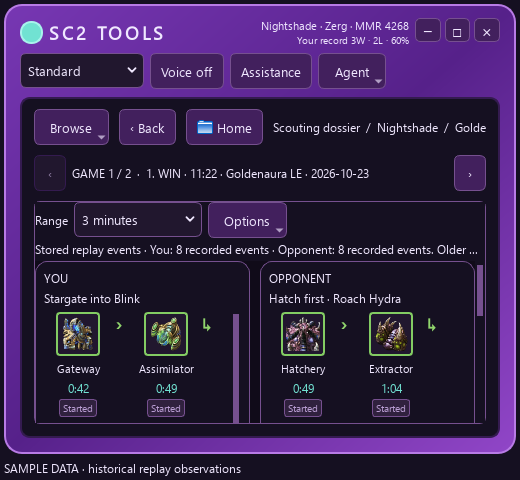
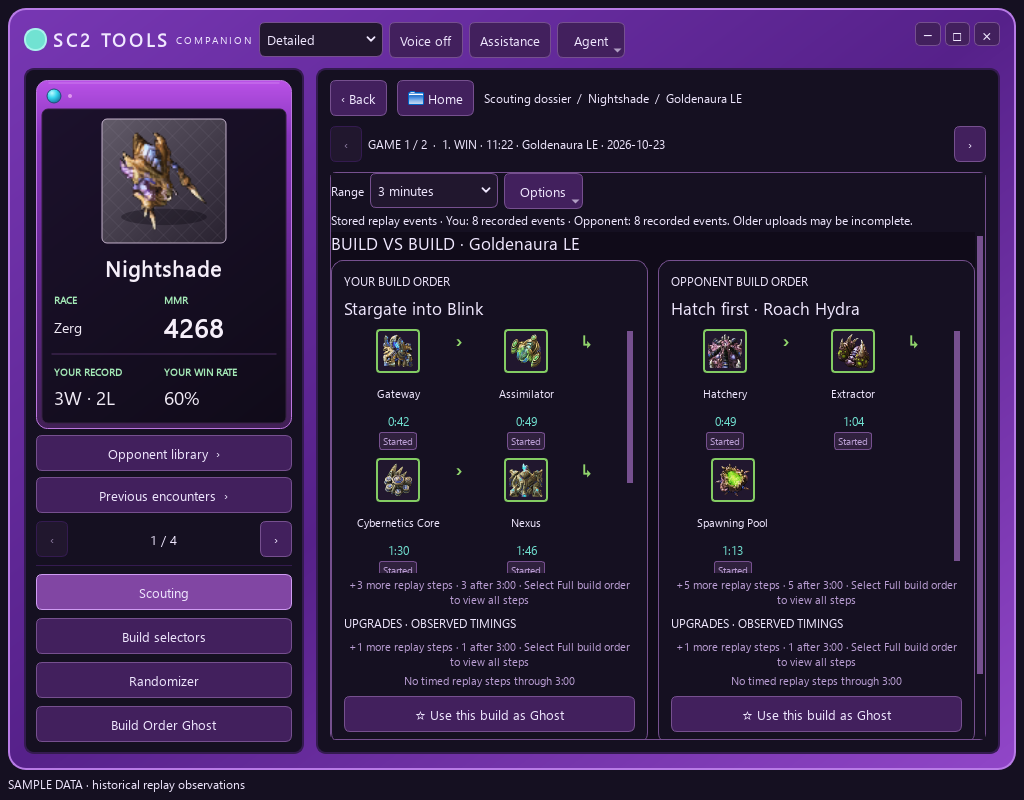
Use Window size to choose an information layout, not just different dimensions. Compact shows the opponent's name, race and MMR, plus your W–L record and win percentage against that opponent on a transparent background. Its single race button toggles the Scouting report during an eligible match and expands Standard when scouting is unavailable. Right-click Compact for other window actions and the shared Agent menu. Standard adds switchable scouting and tool pages. Detailed expands the tech steps and adds upgrade completion chains. Full workspace opens the complete timelines, full opening, notes, filters and replay tools.
Named layouts fit the current monitor's available space. Manual resizing remains available, and the app remembers both its window geometry and selected information layout.
The race button expands Standard when scouting is unavailable, including between matches. During an eligible live game it toggles Scouting. Opening the Agent from its tray icon or shortcut also restores Standard when the main window was Compact; pinned panels keep their sizes. Automatic background startup still stays hidden. While SC2 has focus, the live Scouting action and the scouting report's X and minimize buttons accept clicks; Alt+Tab before using Expand.
Compact is a transparent 420 × 44 logical-pixel strip with no box or decorative border. Standard is 520 × 480, Detailed is 1024 × 800, and Full workspace is maximized. Choose Expand Companion from Compact's context menu to return to Standard. Narrow Standard hides the portrait rail and keeps navigation in menus. Between matches, Compact clears the opponent and waits for the next game.
Keep game clicks in StarCraft II
Pinned panels and the main Compact strip automatically pass clicks through while StarCraft II is the verified foreground application. Use the Scouting icon to open or close the report during a game, or the report's X or minimize button without taking focus from SC2. X closes the report and turns its saved pin off; the Scouting icon can open it again for the current game. The report shares Detailed view's paired build cards, icons, upgrades, time ranges and Ghost actions. Alt+Tab away from SC2 to unlock other panel controls, dragging and resizing. Standard stays interactive, as do Detailed and Full workspace.
Pin your Session record
- Open Assistance and turn on Keep session record on top. Session is off by default and uses the same local border and themed controls as the other panels. It can stay visible between games; no running OBS instance or current match is required.
- Session uses an existing owned overlay token for its authenticated feed. If none exists, choose Assistance → Connect Session stats… and explicitly confirm before creating access. The confirmation defaults to No. Polling and reconnects never create or recreate credentials automatically; no OBS Browser Source is required.
- Read your session wins, losses and elapsed time. These share the OBS Session widget's four-hour-inactivity record, not a calendar-day total. Elapsed time uses the source's session start, not when you opened the panel.
- Turn the independent Session switch off to hide it and stop its Session connection. In-game assistance off hides Session without resetting its record or saved choice. Use Alt+Tab away from SC2 before interacting with the pinned panel.
Session's own latest-known MMR and rating region come from owned Session metadata when available. They can reflect a historical or sticky fallback, not an opponent's MMR or a verified current server. Active server detection is unavailable from SC2's local API. Missing fields show an em dash, not zero or an inferred server. Account changes, disconnects and stale data clear the displayed record; the app does not turn repeated local polling into a fresh cloud observation.
Session refreshes its canonical record while idle and stops displaying an observation after 90 seconds without a fresh source event. If the connection or access is unavailable, the panel shows an unavailable state instead of inventing a 0–0 record or restarting your session timer.
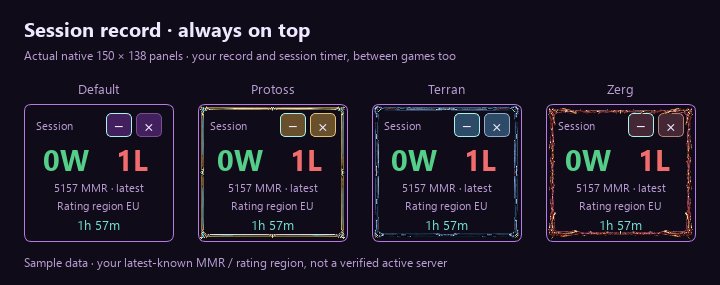
Choose a race-inspired appearance
Open Agent → Border & animations, Assistance → Appearance, or Range → Options → Appearance while viewing a build order. Default keeps the original purple border on expanded views. Optional race borders use original generated artwork: Protoss has gold armor and cyan energy, Terran has blue steel framing, and Zerg has organic shell details. The frame preserves its corners across expanded layouts. Compact stays transparent and uses an original crystal, mechanical scanner, organic eye or Default shield for its Scouting control. The choice does not change your player race, opponent identity, selected replay or saved build.
Animate expanding the Companion enables a short race-inspired opening effect: Protoss warp energy, Terran mechanical deployment or a Zerg morphing seam. Effects play only when you explicitly expand to a larger size, not while scouting data refreshes. Turn animations off for instant expansion; the selected border remains. Appearance choices are saved on this PC independently of in-game assistance and saved modes.
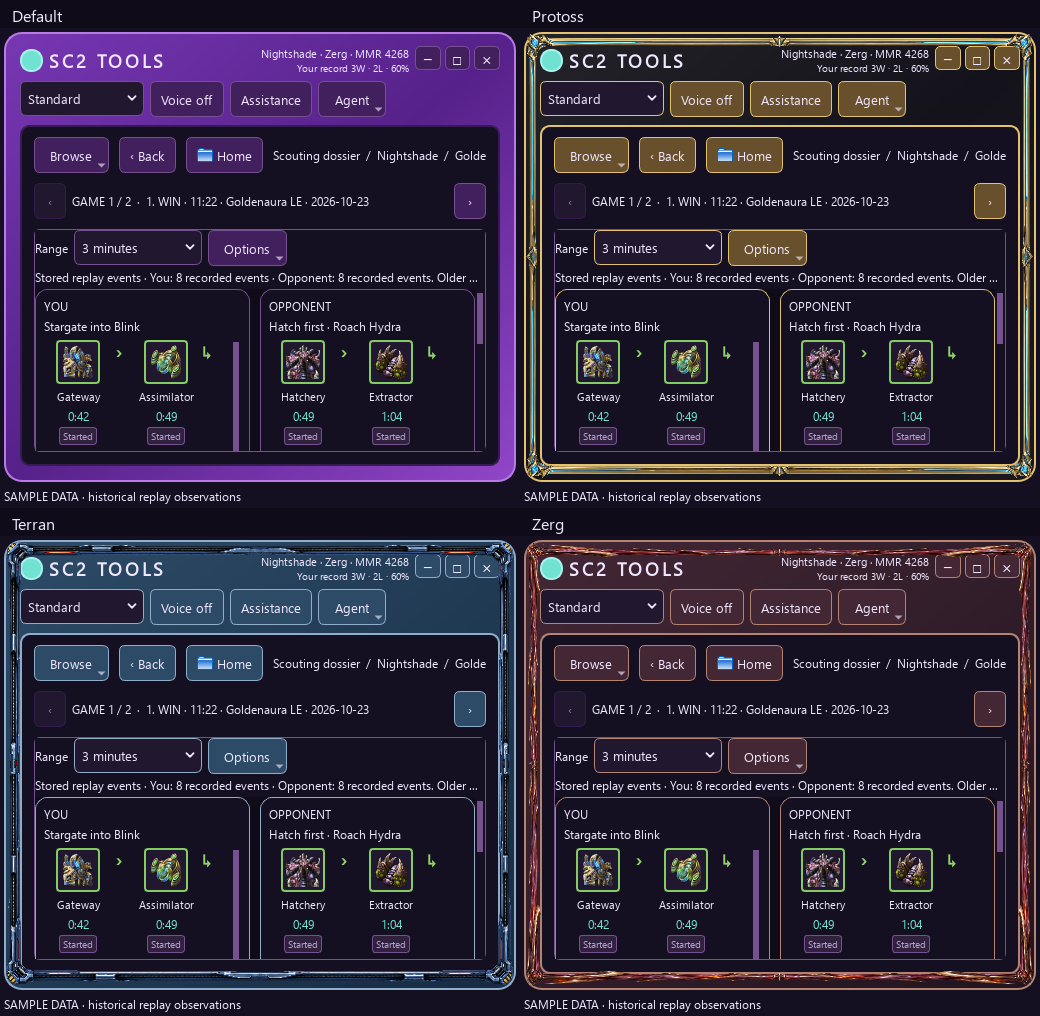
The pinned Opponent strip stays transparent. Scouting and the other panels use the shared frameless appearance and local race artwork, with themed minimize and close controls. Close follows that panel's assistance controls rather than closing the main Companion.
- In-game assistance is the master switch for native panels, spoken scouting and build guidance. Turning it off hides or stops those features, but replay syncing and browsing continue. Your individual switches, saved targets and build choices stay saved.
- Keep opponent on top keeps the current opponent card above other windows during an eligible game, even when the main Companion window is minimized. It does not switch to a historical opponent just because you browse that opponent's profile.
- Keep scouting on top independently keeps past encounters, build-vs-build and recorded replay timings above other windows. This is historical scouting, not live enemy tracking: it does not reveal the opponent's current buildings, units or hidden tech.
- Both always-on-top choices still require In-game assistance, an eligible current game and an active mode that allows that panel. A saved on-top choice does not override a mode gate; its choice remains saved while hidden.
- Build selectors and Ghost have their own controls. Change them whenever you want; the master switch also gates their native game assistance. Randomizer widget playback has its own controls; Companion does not run a native Randomizer engine or audio output.
- Refresh library in Assistance refreshes all Companion workspaces, including build choices, your randomizer pool and Ghost references saved on the website.
- Use StarCraft II in Windowed or Windowed (Fullscreen) mode for native panels above the game.
Save a mode and optional global shortcut
Choose Ladder, Customs, Teams, Practice or Review yourself. These are saved local presets, not automatic queue detection. Open Customize mode to adjust the six independent feature gates. Each mode remembers its choices across app restarts.
- Ladder and Customs initially allow every feature; existing account switches and pin choices still decide what runs. Practice initially allows the selectors and Ghost. Review initially hides game assistance while leaving the library available.
- Mode gates work alongside the master switch and each feature's account switch. Switching modes does not change your account's randomizer pool or check-in preferences. A pinned panel hidden by a preset is identified in the mode summary.
- Teams uses Hybrid scouting: Compact follows one selected enemy, while expanded layouts show the enemy roster. Team identity must be confirmed before its guidance is eligible. Automatic build check-ins and randomizer draws remain 1v1-only, regardless of the preset's saved switches.
- Opt in to Global hide/show shortcut to toggle the master switch with Ctrl+Shift+F10, including while another app has focus. The Windows shortcut must be available; its registration status appears under Customize mode. A shortcut conflict does not change your saved feature choices.
Use Hybrid team scouting safely
- Choose the Teams preset and keep the relevant assistance switches on. Hybrid keeps the selected enemy in Compact and exposes the enemy roster in expanded layouts. Standard keeps a compact team summary with an Enemy roster button for its full roster page; Detailed and Full workspace show scrollable enemy cards. Right-click Compact to choose an enemy or move to the previous or next one without enlarging the bar.
- If the live API does not provide complete authoritative team IDs, open Confirm teams… to explicitly identify your own player under This is me, then mark every other player as Teammate or Enemy. The app does not infer teams from list order, race or a similar name. Reconfirm after the game or roster changes.
- Choose an enemy to view their available owned history. Ambiguous name matches do not silently attach another player's record; select the intended owned identity when confirmation is needed. Historical 1v1 MMR and head-to-head W–L describe previous 1v1 information, not current team-ladder rating or a team-wide win rate.
- Pinned panels and eligible spoken reports follow only the selected confirmed live enemy. They do not reveal current hidden tech. Browsing a historical opponent remains separate from the current team selection.
Team mode does not invent 1v1 decisions
Automatic pre-game and post-game build check-ins and randomizer draws are 1v1-only. Team Ghost is an explicitly armed, temporary practice target, not an automatically chosen enemy-race matchup slot. Missing or stale team identity leaves guidance inactive.
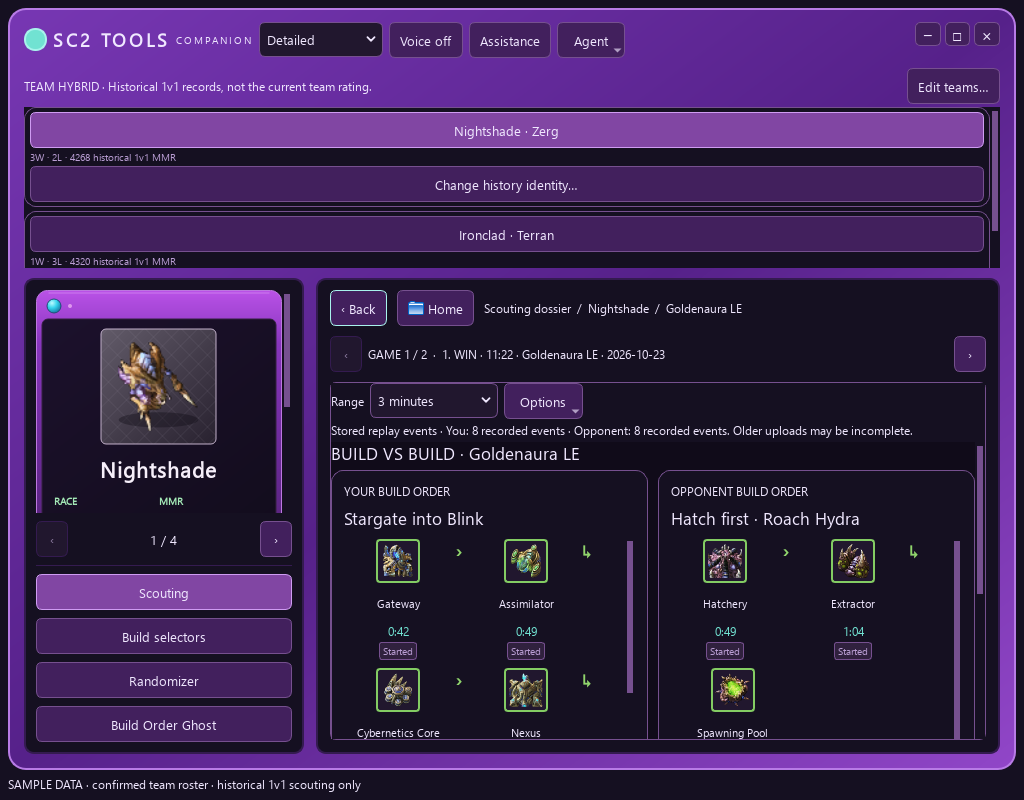

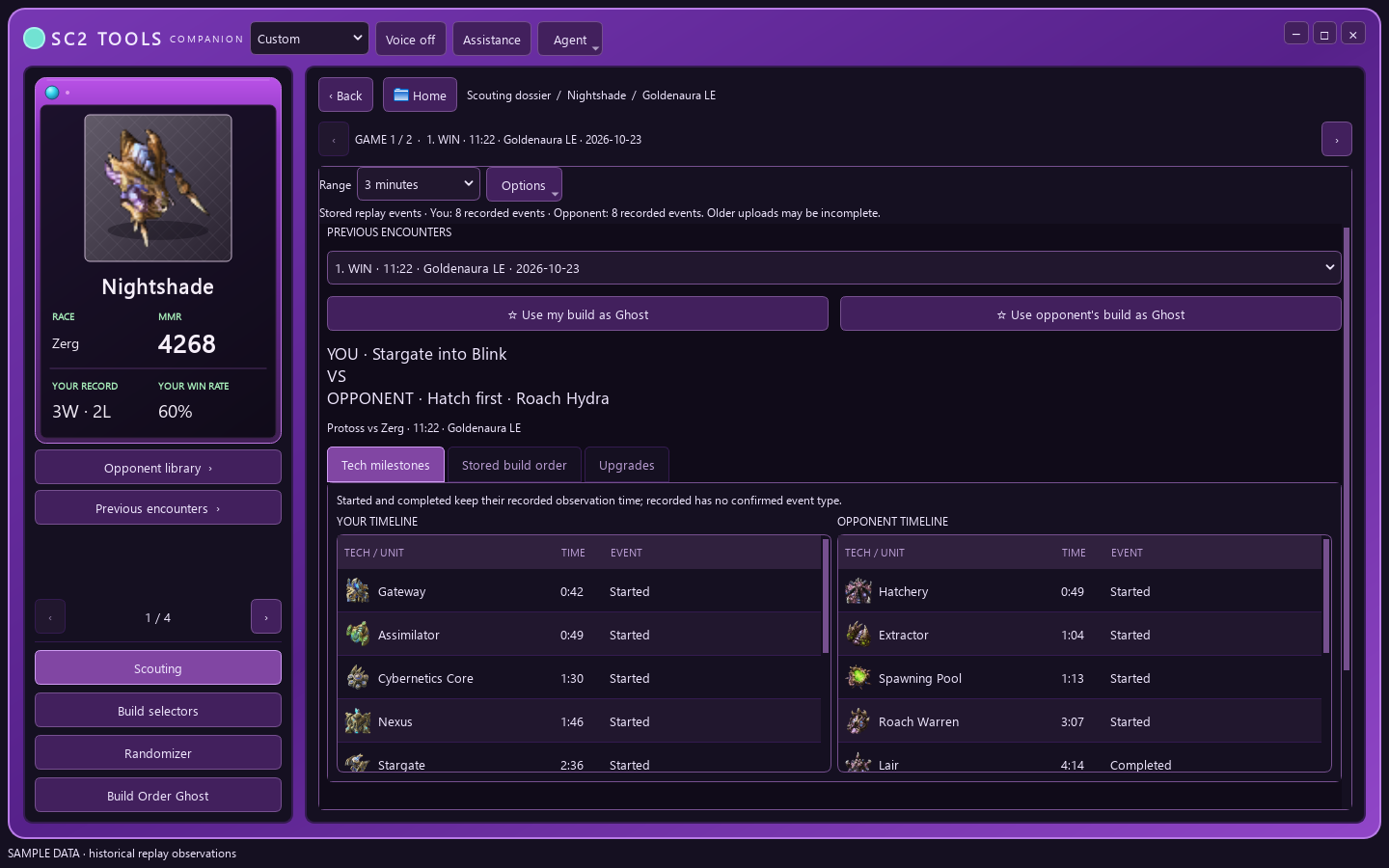
Browse scouting and replay tech steps
- Choose an opponent, then select a previous encounter or use the game arrows. The two build labels show what you and the opponent played. Browsing history stays separate from the current opponent in a pinned game panel.
- The build-order range starts at 3 minutes. Choose 6 minutes, 10 minutes or Full build order to expand both players' build and upgrade icon chains without resizing the window. Enable Include workers and supply when you want those steps too; full details tables retain all available events.
- Selecting an encounter loads that replay's stored build order, including repeated production. A labeled Scouting preview is shortened and may omit later steps; Retry can reload unavailable data. Full means all available stored events, not a promise that an older upload contains every action. Missing or unextracted data is labeled instead of filled in.
- Started marks observed construction starts. Completed marks observed unit, research or morph completions. Recorded is used for older rows whose event type is unavailable; missing timings remain unavailable.
- Keep private scouting notes for the next meeting. Browsing another opponent does not replace the current-game identity shown in a pinned game panel.
Opt in to native spoken scouting
- Spoken scouting starts off. Use Voice off / Voice on in the console header, or enable Read scouting report aloud in Companion under Assistance.
- Keep the master assistance switch and the active mode's spoken-scouting gate on. Reports require a fresh, identified human 1v1 game or the selected confirmed live enemy in Hybrid team mode. Menus, replays, unconfirmed team identity and stale telemetry do not trigger a report. Browsing an opponent or replay never triggers speech.
- One automatic scouting report plays per game across Companion and connected OBS Browser Sources. The first reader ready to speak handles it. It briefly waits for opponent-history enrichment; if that data does not arrive, it reads only the information available instead of inventing a record or notes. In Hybrid, use Read report now to hear another selected confirmed enemy.
- Use Read report now in Assistance to repeat the current eligible report. Stop reading, turning voice off, or hiding assistance stops native speech immediately. You can still browse the library with voice off.
Native reports use your Windows system voice, preferring the installed SAPI engine, without OBS or a browser source. Native scouting voice is unaffected by widget-only Randomizer playback. The status shows the actual available voice or an engine error. The report uses the current opponent's supplied name, race, MMR and verified head-to-head record. Private notes are included only when Include notes in voice readout is enabled; an unverified opponent match never exposes a candidate's record or notes. Replay history does not become a claim about current tech.
Companion and OBS keep their own voice choices. Automatic scouting playback is shared across them, so enabling both does not repeat the same game-start report. Read report now remains available for deliberate repeats.
Build selectors and the shared Randomizer pick
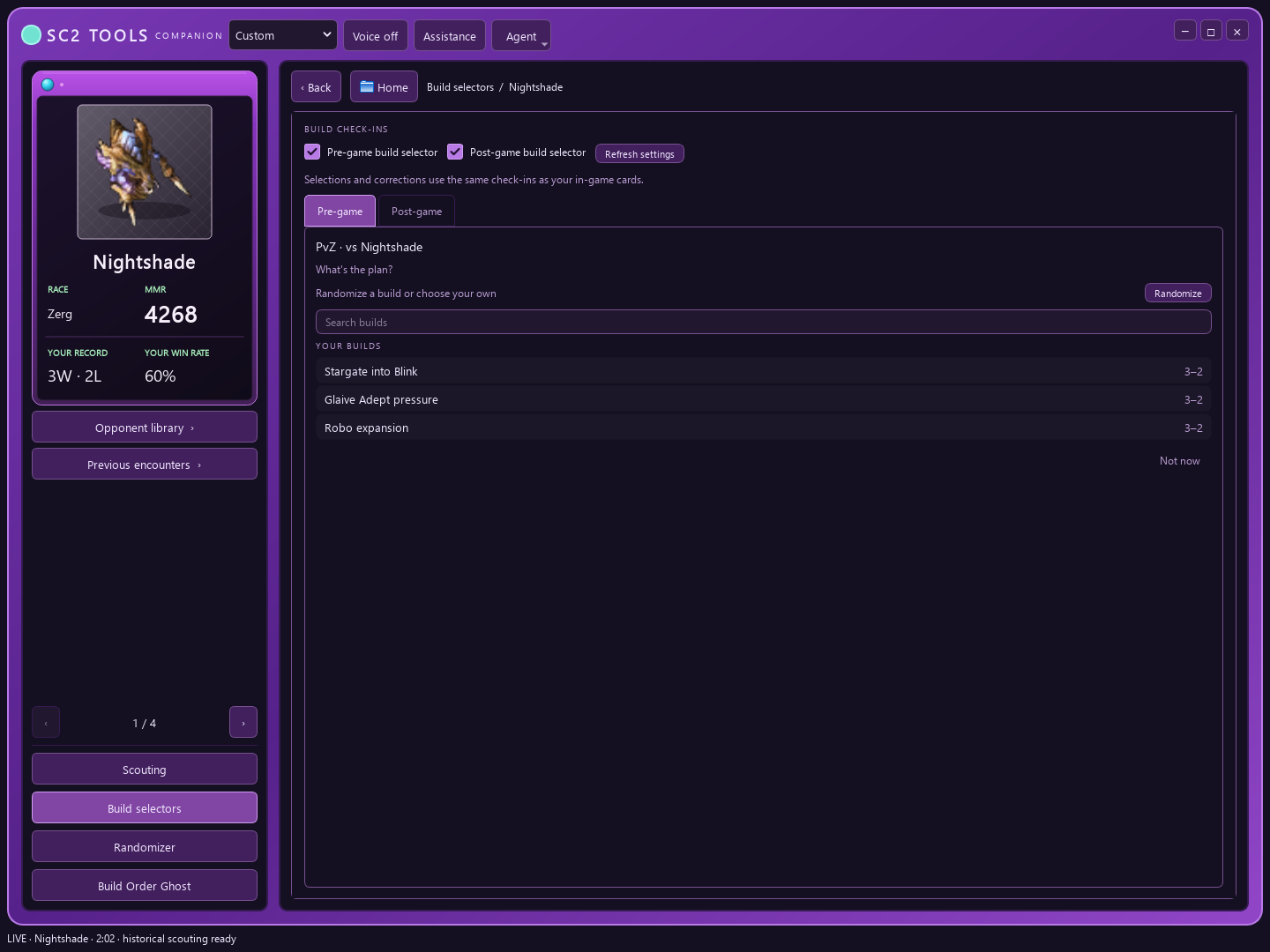
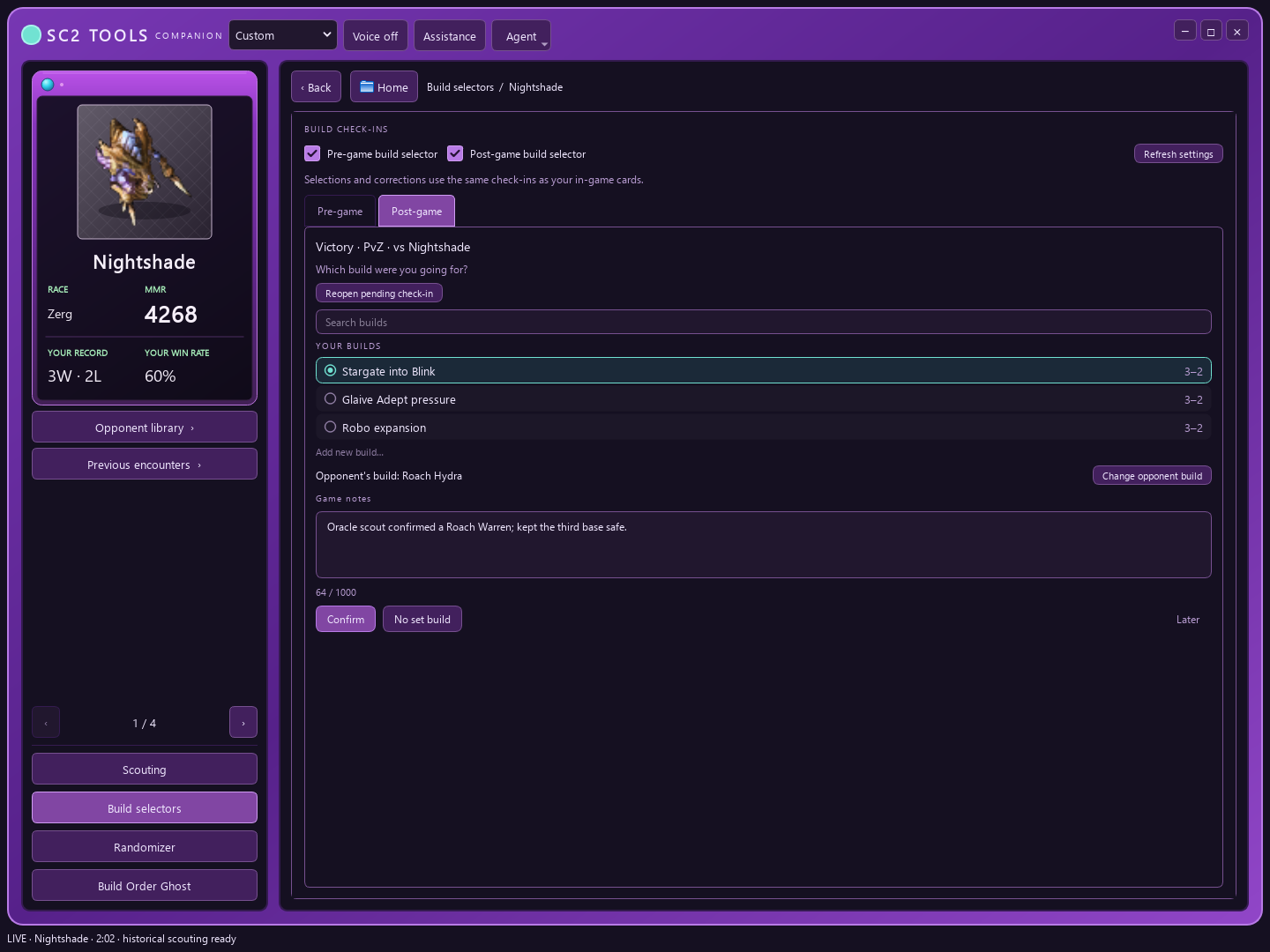
In Build selectors, choose your plan for the current matchup and handle the after-game check-in. You can also correct the opponent's build. Build check-in explains which confirmations change your personal statistics.
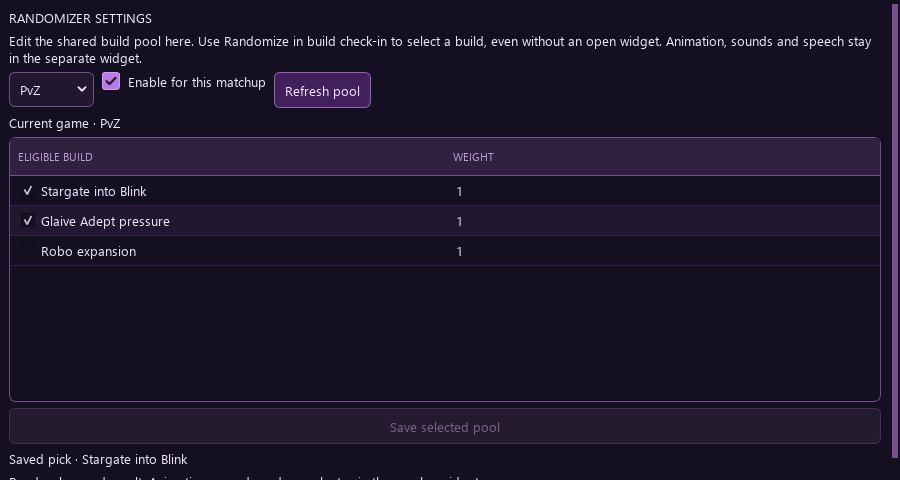
In Randomizer, enable the matchups you want, check eligible builds and save the pool. In the loading check-in, click Randomize to select and save one build even without an open widget. Repeated clicks and connected displays reuse the same saved result. Unavailable pool entries are skipped; a failure shows a message and allows retry. The settings page's saved result is read-only. There is no native current-game Randomizer window: animation, sounds and spoken results are widget-only. A declared build takes priority.
Automatic loading and after-game check-ins and saved randomizer draws apply to eligible human 1v1 games, not team games. Keeping a team preset's feature switch on does not bypass that limit.
Choose a replay for Build Order Ghost
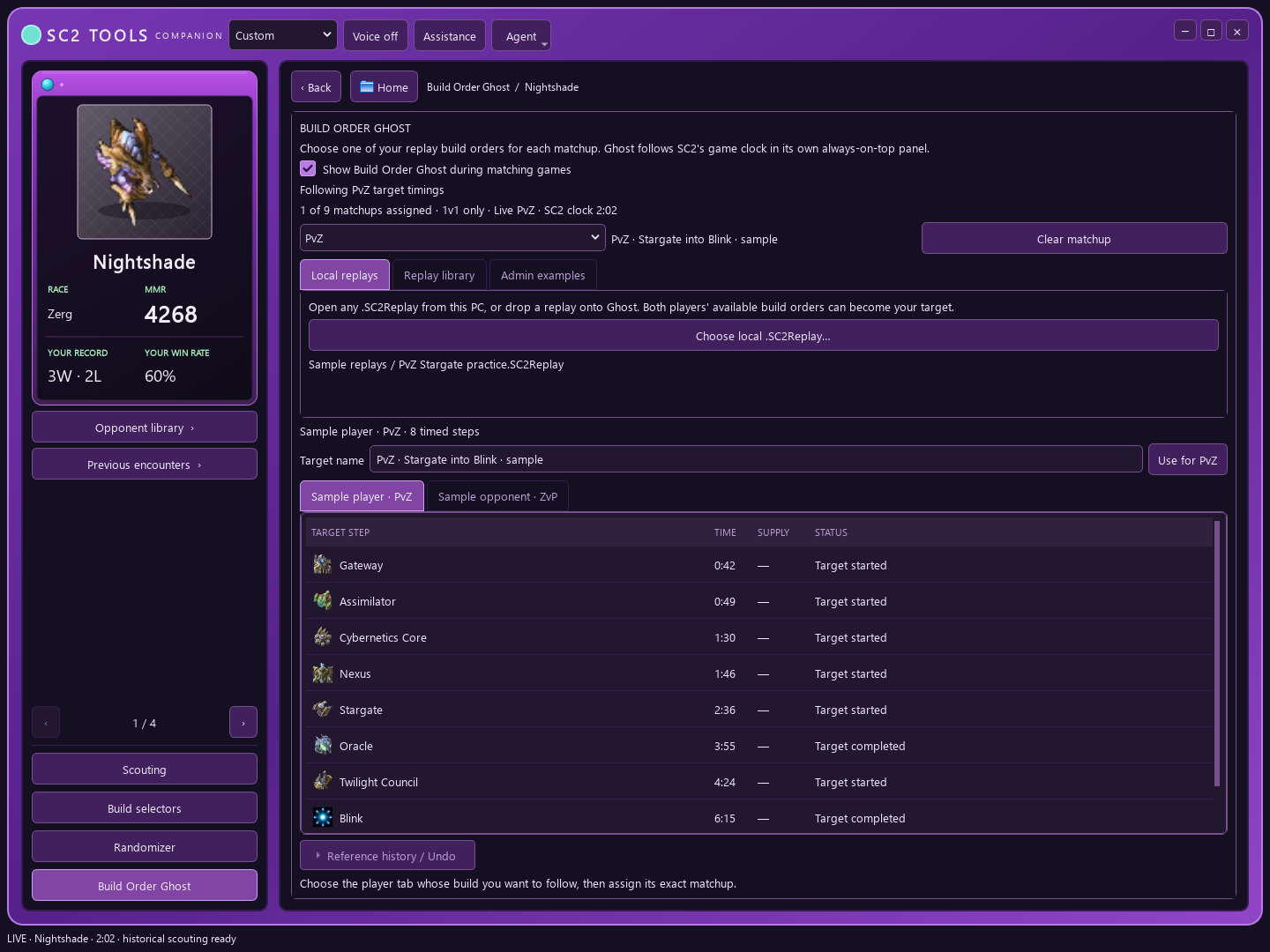
- Open Build Order Ghost. Choose a local .SC2Replay, or drop one onto Ghost. You can also choose from your synced replay library or an available published example.
- Preview the available build order for each human player. For 1v1 practice, select the opening you want and assign its target to a matchup. A local team replay can also preview individual human players; it does not become a fabricated 1v1 matchup.
- Turn on Show Build Order Ghost during matching games and the master assistance switch. Ghost follows the current game clock in its own panel. It does not infer unit completion from the live client.
- Save a good example as a build's reference with its star action in Builds or Opponents, then reuse it when selecting a practice target. References belong to individual builds.
For a confirmed current team game, preview a replay player or available admin example whose race matches your own confirmed player, then choose Use this target in current team game. This manual choice is local to that game and does not overwrite a saved 1v1 target. It clears when the account, game, roster, player identity or selected enemy changes, when telemetry becomes stale, or when Ghost, the master switch or its mode gate is turned off; explicitly arm it again when appropriate. Use the original local .SC2Replay for full individual build streams from team games; cloud team rows do not provide every player's complete build stream.
Find, compare and restore references
The Ghost replay library filters by search, matchup, build, map, result and references. Filters apply to loaded pages; load older replays when the example you want is not listed. Local replay selection also accepts files outside your watched folders. Choosing a file does not upload the original replay.
Star a replay to replace that build's reference. The last three previous versions are retained in Reference history / Undo. Choose an earlier version and confirm restoration. If another device changed the reference, refresh before trying again; Undo never silently overwrites a newer reference.
Use Compare with reference for a completed replay. The table matches repeated steps in order and shows the timing difference only for compatible start or completion observations. The source replay is not graded against itself. Missing or incompatible events remain marked rather than treated as completed steps. The same comparison is available in expanded website replay rows.
Your library and shared examples
Your synced replays and saved references remain part of your account. An admin may explicitly publish an example for others to practice; importing, starring or selecting a private replay does not publish it automatically. Review the selected player and source before assigning a Ghost target.
Recover older Recent games details and read Activity log
Open Agent → Recent games. Older listed upload receipts gradually fill in from matching owned cloud game metadata, without resyncing, re-uploading replay files or resetting the upload cursor. The original path, upload timestamp and status stay intact; richer newly tracked rows take priority. Missing cloud metadata remains unavailable instead of being guessed from a filename.
Recent games sorts by the actual played date when known. Dashboard Today uses that played date, not the day an old replay was uploaded; Synced counts still describe uploads. Account changes and unpairing discard in-flight metadata replies.
Agent → Activity log shows sanitized managed OBS connection status without credential-bearing third-party connection logs or repeated SDK connection-refused tracebacks. OBS is optional: a closed or unavailable OBS WebSocket server does not stop Companion scouting or replay syncing. Check your OBS connection settings only when you want OBS features.
OBS remains optional. Stream Browser Sources and the native desktop panels have different display settings. If you broadcast a display or window capture, check which Companion windows and notes your capture actually includes.
Related articles
- Install and link the desktop appDownload the desktop app, get past the Windows warning, and link it to your account with the 6-digit code. After that, every game you play syncs on its own.
- Private scouting at the loading screenSee your record, recent opening history and private opponent note in the desktop card, then leave a note for your next meeting.
- Build check-in: count the build you went forSay which build you were going for, at the loading screen or after the game, so each build's record counts the games you planned it. You can also correct the opponent's build.
- Build randomizer: let a draw pick your buildConfigure a shared pool, then Randomize from check-in even without an open widget. Every display uses one saved result; animation, sounds and speech stay in the widget.
- Practice a build with Ghost BuildChoose a local or synced replay, preview either player's opening, and follow its steps in the native desktop Ghost panel. Account-synced website assignments also support post-game timing grades and a permanent OBS source URL.
Still stuck? Email responsecoaching@gmail.com — include what you clicked. For desktop app issues, see Desktop support tools for version availability and Help > Copy support info. For website issues, attach a screenshot if useful.