
Practice a build with Ghost Build
Choose a local or synced replay, preview either player's opening, and follow its steps in the native desktop Ghost panel. Account-synced website assignments also support post-game timing grades and a permanent OBS source URL.
Updated For players
Agent 0.24.1 and later
Update the Windows agent for the native Ghost controls below. Website targets and optional OBS setup remain available. See Desktop Companion.
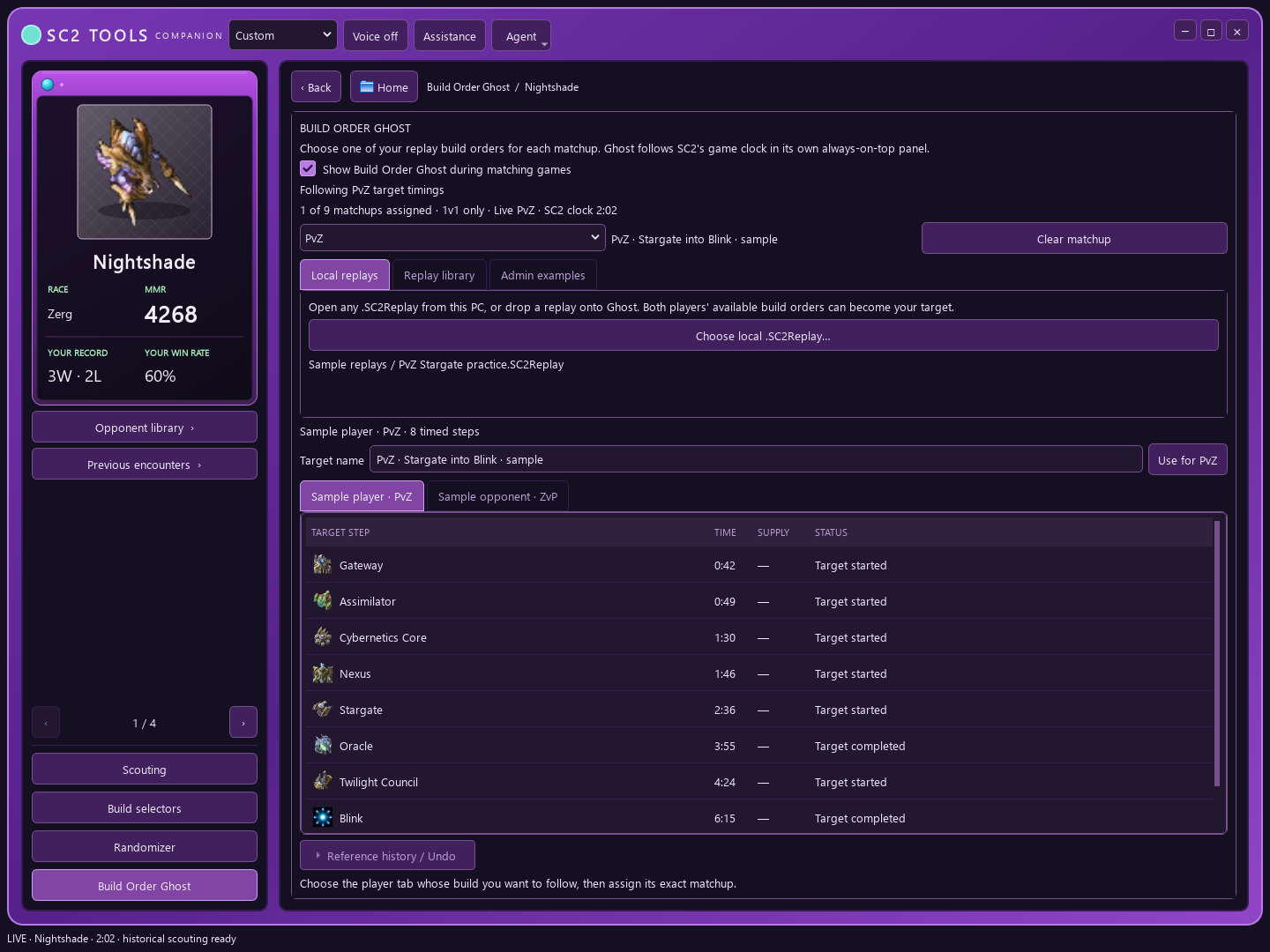
Build Order Ghost follows a replay's timed opening against your current game clock. In the Windows Companion → Build Order Ghost tab you can configure and use the native panel without OBS. Choose a source, inspect its actual steps and assign it to a matchup before turning the panel on.
Choose a native Ghost target
- Open Companion → Build Order Ghost in the desktop app. Choose a local .SC2Replay or drop one onto Ghost, select a synced replay, or choose an available example explicitly published by an admin.
- Preview both players' available build orders. Select the player whose opening you want, review the matchup and timings, then assign that target to the matchup slot.
- Turn on Show Build Order Ghost during matching games and Companion's Game assistance enabled master switch. The native panel follows the game clock above the game; Windowed or Windowed (Fullscreen) mode is needed.
- Turn Ghost or the master switch off at any time to hide the panel without clearing assigned targets. Clear matchup removes the selected target.
Keep a reference replay for each build
In Builds or Opponents, use a replay's star action to save it as that build's reference example. Select a reference in Ghost when you want to practice it, then choose the source player and assign the target. A reference is tied to a build; it does not replace all matchup slots. Private sources are not published automatically, and shared admin examples are an optional source.
What the live panel knows
Native Ghost follows scheduled replay steps against the SC2 game clock. It does not read live unit or building completion from the game client. Its timing list is a guide, not a claim that you completed a step.
Use the replay library's search, matchup, build, map, result and reference-only filters to narrow loaded games. Reference history / Undo keeps the last three previous examples per build. Restoring an example asks for confirmation and refuses to overwrite a newer change from another device.
For a completed replay, Compare with reference shows historical timing differences, including repeated buildings or units matched in order. Start timings compare with starts and completion timings with completions. Missing observations are not fabricated, and the source replay itself is excluded.
Optional website target and grading
- Open a game where you played the build well, ideally a clean win.
- Open one of your games and choose Use as Ghost Build target above your build order (the short phone label is Ghost target).
- A concrete matchup is required. That replay becomes the account target for later games in the same matchup across signed-in browsers; the source game itself is not graded.
- If another target is already armed, confirm the replacement. Use Undo in the success message to restore that slot, or Disarm to stop grading and OBS coaching for that matchup. Undo refuses to overwrite a newer change from another browser.
- The account target enables grading of later games in that matchup in your signed-in browsers. An OBS display of those target steps is optional; native Companion has its own source assignments.
- Do the same for any other matchup you want to practice. Each of the nine matchups has its own slot.
Practice from any build page
Choose Practice in PvZ (or the build’s matchup) from a saved build, its dossier, a Community build, a build guide, or a definition card with a guide. The split button’s options let you choose another matchup for that race or open Ghost settings. Build cards also offer Practice this in their ⋯ menu. Sign in to save an assignment.
Practice prefers your saved reference build order, then the private build’s source replay, then positive rule deadlines. A guide can supply recorded community-median checkpoints. Rule-only targets are labelled checkpoints: these are deadlines, not a recorded replay’s production times. Negative, maximum-count and proxy-location conditions are not converted into produced steps. Targets contain at most 80 opening steps.
The app’s Practicing: <build> (PvZ) chip links to settings and offers quick disarm. With several assigned matchups, +N shows the additional slots; Ghost selects only the exact live-game matchup.
Move existing browser assignments
In Settings → Overlay → Ghost Build coach, choose Move this browser’s assignments to your account once. Existing account slots win; migration fills only empty slots and keeps the local saved-build library. You can keep the old browser setup instead. A legacy single-target setup first asks you to choose its exact matchup; it never guesses.
Old #ghost and ?ghost URLs keep working until an account configuration is present. A saved account configuration takes precedence, including an explicitly empty configuration after disarm. Copy the dedicated URL once for new sources. The URL-specific Voice coach opt-in still requires updating the URL if you change that switch; assignment changes do not.
Optional OBS coach setup
- Open Settings → Overlay and go to Ghost Build coach.
- Under Matchup build coach, pick one saved build for each matchup you want coached. The badge shows how many of the nine are ready.
- Your choices are saved to your account. The Ghost Build URL is permanent: changes and clear actions reach your active Browser Source without copying a new URL.
Optional OBS display
- In OBS Browser Source URLs on the same page, find Ghost Build coach and copy its URL. Turn on Voice coach next to it first if you want each step read out a few seconds before it's due.
- Add the URL to OBS as its own Browser Source. It's separate from the all-in-one overlay.
- Between games it shows that a build is armed. When a game starts, it waits for both races, then shows the previous, current and next step against the game clock, with a drift chip comparing the scheduled step time and game clock. It cannot observe whether you performed that live action.
Use the native Companion panel when you want Ghost without a browser source. For an on-stream display, see OBS overlay setup.
Read a website target's grade
After the game, the game page shows a Ghost Build grade card when an account target is set for that matchup. A failed account refresh may show this account’s cached target with a visible cached notice. Selecting a native Companion source does not by itself set a website grading target.
| Grade | What it takes |
|---|---|
| S | Every step done, on average within 5 seconds of its time, never more than 15 seconds off. |
| A | At least 90% of the steps, on average within 10 seconds, never more than 30 seconds off. |
| B | At least 75% of the steps, on average within 20 seconds. |
| C | At least half the steps, on average within 40 seconds. |
| D | Anything less. |
- Steps hit, Avg drift and Max drift show how close you were.
- First divergence names the first step you skipped or did more than 30 seconds off its time. That's usually where to look in the replay.
- Per-step breakdown lists every step: green within 5 seconds, amber within 15, red beyond that or missed.
- Disarm clears that account matchup and stops both website grading and OBS coaching for it.
Good to know
- Ghost pauses for the whole game against a Random opponent, so it never coaches the wrong matchup once their race shows.
- Both native and OBS displays need the desktop app running to receive the game clock.
- Website assignments sync to your account; the browser keeps an account-specific offline cache. Native Companion target assignments remain saved on that desktop and do not turn on automatically.
Related articles
- Desktop Companion: scouting, build choices and practiceBrowse replay builds, use Hybrid scouting, and pin a Session record. Randomize from check-in even without an open widget; keep its animation and audio in the widget.
- Detected builds and your Build libraryEvery game gets a build label from deterministic rules that come with SC2 Tools and compatible shared preset policies. Your Build library keeps your own definitions privately, each with its own record.
- The game page: one game in detailEverything about one game: its story, fights, build orders, timeline, map replay, mechanics and loss analysis, with buttons to download, share, check in or save the build.
- Build randomizer: let a draw pick your buildConfigure a shared pool, then Randomize from check-in even without an open widget. Every display uses one saved result; animation, sounds and speech stay in the widget.
- OBS overlay setupChoose a starter pack, drag correctly sized widgets into OBS, and test your setup while keeping private URLs hidden.
Still stuck? Email responsecoaching@gmail.com — include what you clicked. For desktop app issues, see Desktop support tools for version availability and Help > Copy support info. For website issues, attach a screenshot if useful.